Platform guides· Kamal F 5 min read
How to Start a WooCommerce Store: WordPress, Hosting, Payments and Your First Product
The parts of a WooCommerce store in order, what your host has to support, what a card sale costs with WooPayments, and what you keep running yourself.
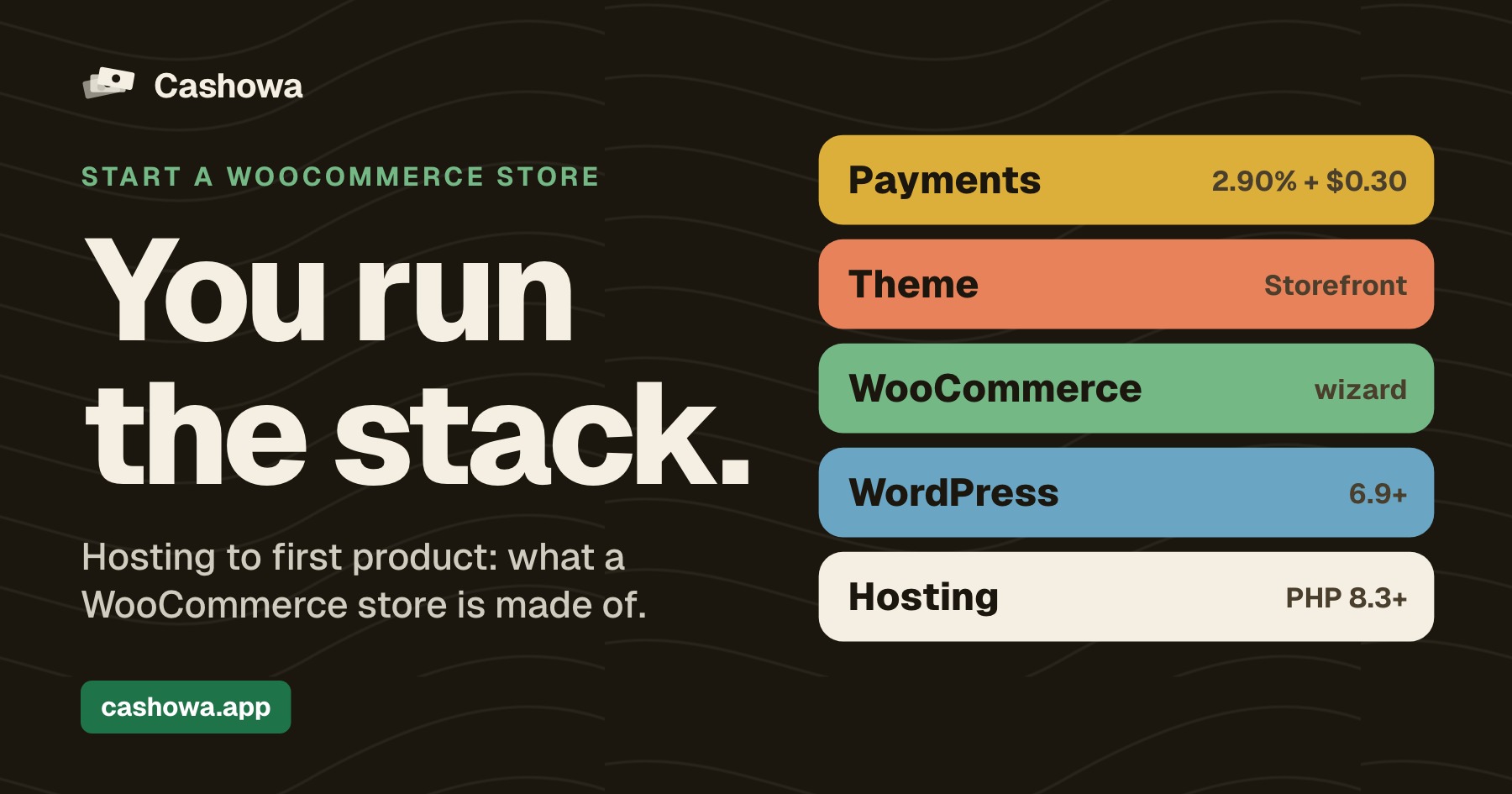
To start a WooCommerce store you choose hosting, install WordPress, install and activate the WooCommerce plugin, pick a theme, and add payments and products. WooCommerce is software you run on your own site, which is its appeal and its trade-off: the store is yours to configure, and keeping it running is yours too. This guide takes the parts in order, with the host requirements and payment fees as WooCommerce publishes them.
Connect your WooCommerce store and write your first products
How Cashowa works for sellersThe parts you need to start a WooCommerce store, in order
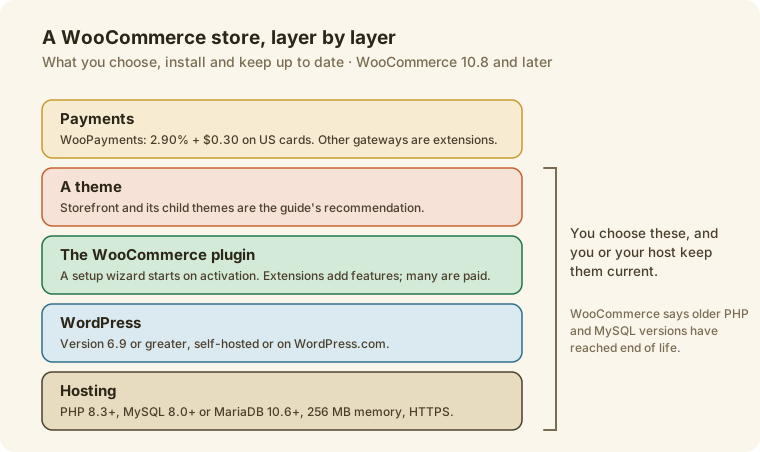
WooCommerce's guide, Start with WooCommerce in 5 Steps, covers five parts:
- Hosting. The guide points to WooCommerce's own hosting page for recommendations.
- WordPress. If you do not use WordPress.com, you install self-hosted WordPress, often with a one-click option from your host.
- The WooCommerce plugin. You install and activate it, and a setup wizard starts. The guide says it strongly advises following the wizard, because it covers the initial setup.
- A theme. The guide recommends Storefront and its child themes.
- Extensions. They add features, and many are paid.
What your host must support
WooCommerce's server requirements page covers WooCommerce 10.8 and later and lists these minimums, read on November 16, 2026:
- WordPress 6.9 or greater.
- PHP 8.3 or greater, tested up to 8.4.
- MySQL 8.0 or greater, or MariaDB 10.6 or greater.
- A memory limit of 256 MB or greater.
- HTTPS support.
The page says WooCommerce also works with older versions, namely PHP 7.4, MySQL 5.6 or MariaDB 10.4, but that those versions have reached end of life and may expose sites to security vulnerabilities. A host that offers current versions of all of these saves you a later migration, so check the versions before you pay.
Payments: what a card sale costs
WooCommerce's page on WooPayments fees gives the US card rate as 2.90% + $0.30, with 1.50% more for an international card and 1.00% more for currency conversion. It says there are no setup fees, no monthly fees for online payments and no other hidden charges. On a $40 order, the card fee is $1.46 (2.9% of $40 plus $0.30). Other payment methods are extensions with their own prices: the five-step guide lists payment gateways as an extension category.
What you own and what you keep running
With WooCommerce you choose the host and install the software, so the store is yours to configure: the checkout, the emails, the policies and the products. The other side is upkeep. WooCommerce's requirements page ties end-of-life software to security risk, so keeping WordPress, PHP, the plugin, your theme and your extensions up to date is part of owning the store, whether you do it yourself or your host does it. Shopify's plans run the store software for you, which is the difference how to start a Shopify store describes.
Add your first product
WooCommerce's page on managing products says a simple product needs only a name, a price and a description, and that you can add images and attributes. It lists five product types:
- Simple. A single item with no variations.
- Grouped. Several products shown together on one page, each purchasable separately.
- External or affiliate. A link to an item sold on another website.
- Variable. Items with variations such as sizes or colors, each with its own price, SKU and stock level.
- Virtual and downloadable. Services that are not shipped, and digital files.
Start with simple products unless you sell sizes or colors, in which case a variable product keeps each option's price and stock separate.
Mistakes worth checking for
- Skipping the setup wizard. The guide says it strongly advises following it.
- Choosing a host without checking its versions. The requirements page lists minimums for WordPress, PHP, MySQL or MariaDB and memory.
- Running end-of-life PHP or MySQL. The page says those versions may expose sites to security vulnerabilities.
- Forgetting HTTPS. The requirements page lists HTTPS support.
- Treating extensions as free. The guide says many are paid.
Where Cashowa fits
Cashowa connects to a WooCommerce store without asking for your password. You type your store's web address, and Cashowa sends you to your own store's WooCommerce approval page, where you log in and approve either read access or read and write access. Your store then gives Cashowa an API key that opens only that store. The store is served over https, which WooCommerce's requirements page already asks for.
Once connected, Cashowa checks each product's title, description, tags and photo alt text, and writes fixes as a before and after, changing nothing until you approve it. It looks at your store's own product photos to write alt text. For a new product, the new-listing form writes a draft from your photos and notes and creates it in WooCommerce as a draft product, which you publish from your store. How Cashowa works for sellers says what it reads and keeps.
Frequently asked questions
What does it cost to run a WooCommerce store?
WooCommerce's guide says extensions add features and many are paid, and you also pay for hosting and a domain, which vary by provider. WooPayments has no setup fee and no monthly fee for online payments, and charges 2.90% + $0.30 on US cards.
Do I need WordPress to use WooCommerce?
Yes. WooCommerce's guide has you install WordPress first, either self-hosted or on WordPress.com, and then install and activate the WooCommerce plugin.
What payment methods does WooCommerce support?
WooCommerce has its own payment method, WooPayments, and lists other payment gateways as extensions. Each has its own fees, so read the provider's page before you choose.
Which PHP version does WooCommerce need?
WooCommerce's requirements page, covering WooCommerce 10.8 and later, lists PHP 8.3 or greater, tested up to PHP 8.4. It says older versions have reached end of life.
Can I connect my WooCommerce store to Cashowa?
Yes. You type your store's address, log in on your own store's WooCommerce approval page and approve access, and your store gives Cashowa a key for that store.
Shopify and WooCommerce are trademarks of their respective owners. Cashowa is independent and is not endorsed or certified by any of them.